Uses Functional User Manual
Users
Users Listing
User Creation
Step 1: Click the Action button
Step 2: Select Add New to open the user creation form
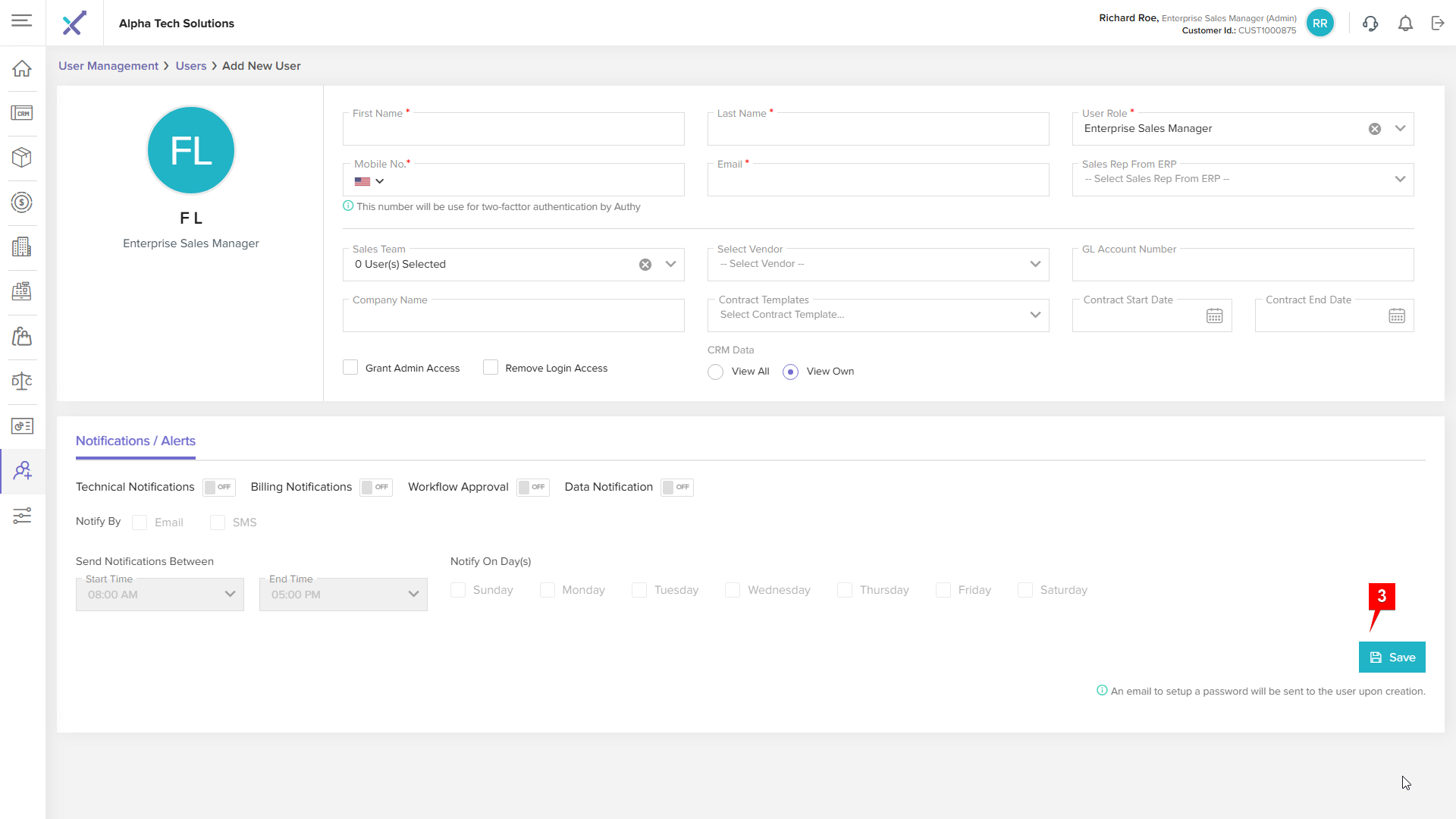
Step 3: Fill all the details as per fields and click on save button
Edit User
Step 1: Click on edit icon
Step 2: Change any details as you want to update click on save
Change Status of User
Click on status drop down icon system will display options select status as you want Active-> In Active OR In Active-> Active
Import User(s)
Step 1: Click the Action button
Step 7: Select Import User(s)
Step 3: Click the Download Blank CSV Template
Step 4: Upload your XLSX file containing the user's data
Step 5: Click the Upload
Step 6: Click here to view Ignored User(s) and Successful Uploaded User(s) List
Support User
Click on support user system will redirect to support user section
Add
Step 1: Click on Action button
Step 2: Click on Add New button
When you select option Hours, then enter No. of Hours and click save.

Notes: System should not allow to enter more than 168 hours
When you select option Days, then enter No. of Days and click save.
Notes: System should not allow to enter more than 7 DaysAfter add support user system will disable add new button (not allow to add more than 1)
Edit
Step 1: Click on Edit icon
Step 2: Select Period option as you want
Step 3: Enter Days OR Hours as you selected option
Step 4: Click on Save button
Delete
Step 1: Click the Delete icon next to the support user
Step 2: Confirm by clicking OK to delete, or cancel to abort the action