Price List Functional User Manual
Price List
Price List Listing
Add Price List
Step 1: Click the Action button
Step 2: Select Add Price List to open the price list creation form
Step 1: If you want enable approval workflow button.
 Note: To enable the Approval Workflow, ensure the workflow is configured under Application Settings-> Workflow menu
 Step 2: Select the desired workflow option based on your requirements.
Step 3: Select the start and end date.
Step 4: Click the Add New button to insert a row in the item table.
Step 5: Use the Dropdown to select an item
Enter the Minimum, Maximum, and Price values, click outside the table to save the entry.
Import Items via XLSX
Step 6: Click the Action button
Step 7: Select Import to open the file upload popup, upload your XLSX file containing the price list data
Step 8: Upload your XLSX file containing the price list data
Step 9: Click the validate item(s)
System redirect Confirmed Item(s) pop up where Valid Item(s) and Rejected Item(s) tab
Click on submit button for import items OR cancel button for close the pop up without import items
Step 10: After fill all details click on submit button
Price List Details
Click on any price list entry to open its Details
As above image when Approval Workflow enable system will display Draft-> Pending Approval-> Approved status AND Approval Trails tab (which not display in normal price list when approval workflow off)
Price List History
Step 1: Click on price list history
When click No of item 3-tab system display according to that history
When click No of item 2-tab system display according to that history and change items table as two items and prices etc.
As above image when price list in Pending Approval mode -> Approved status color is Grey
As above image when price list in Draft mode-> Pending Approval and Approved status color is Grey
Add/ Update Price List
Which price list workflow disables the system displaying the Add/Update Price List Options
Which price list workflow enables the system to display only the Add Price List option
In Update Mode, users can modify:
Add New/ Delete Existing Item
Price
Unit of Measure (UOM)
Start Date End Date
Additional Information
Customers
Displays a list of customers who are currently using this price list
End Users
Shows the list of end users associated with the price list
Terms & Conditions
To use this feature, enable it via Application Settings-> System Configuration-> Price List Terms and Conditions
Step 1: Click Export Price List Terms
Step 2: Once all options are selected, choose Export PDF.
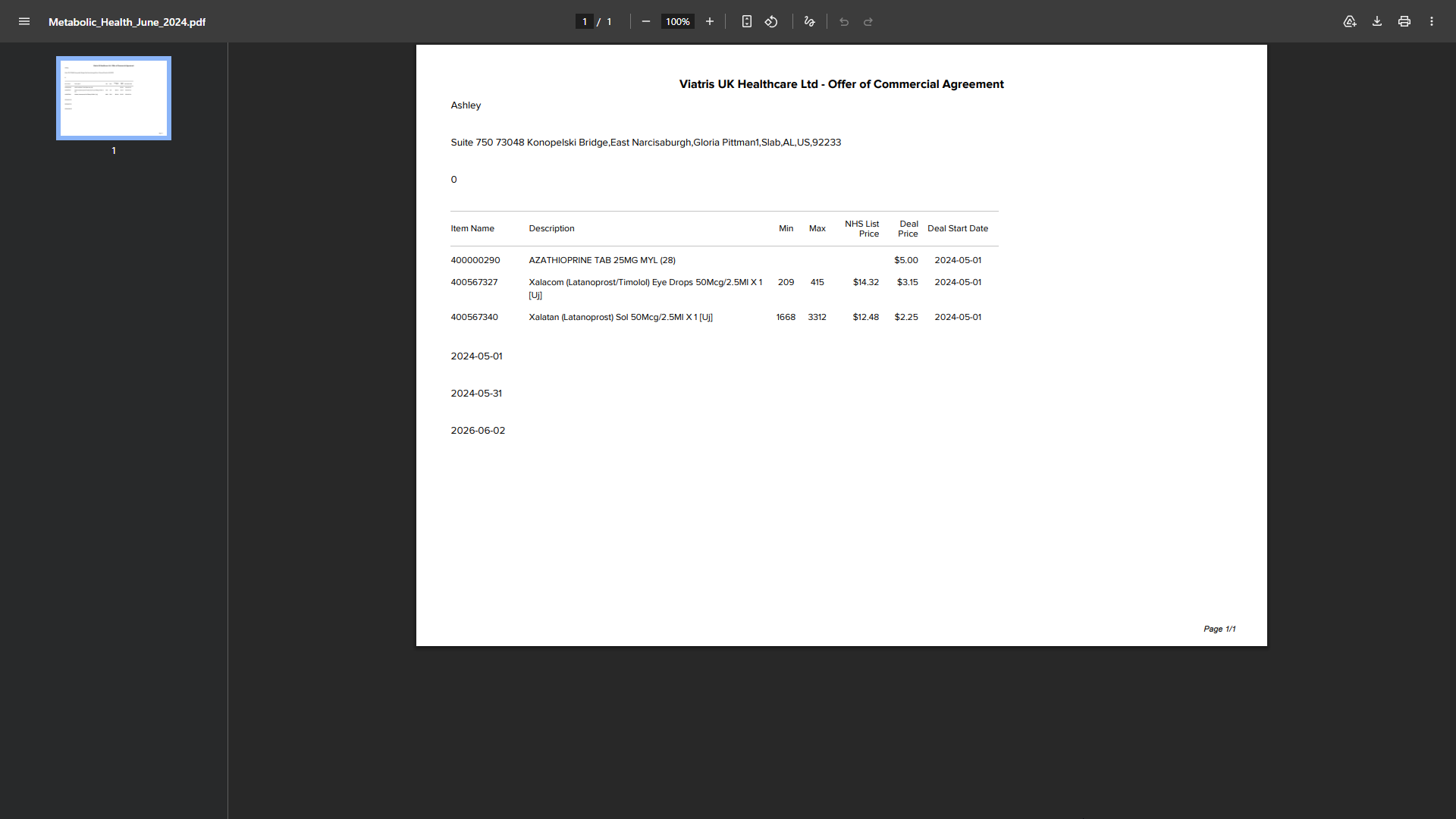
The system generates and downloads a PDF containing the specified Terms & Conditions fields
Approval Trails
Displays a log of all approval actions taken on the price list